
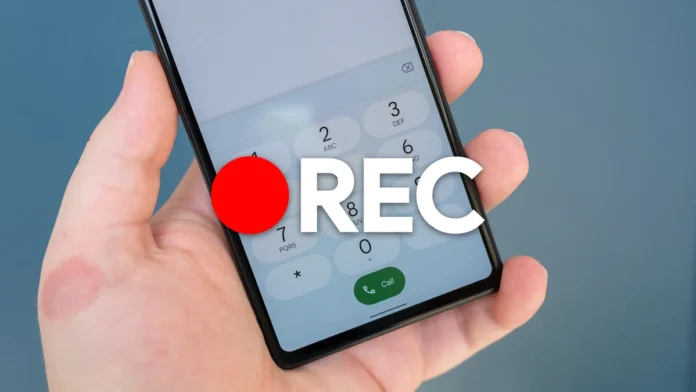
Hey folks! Ever felt that pang of regret after a phone call, wishing you’d remembered every detail? Or maybe you’re in a situation where having a record of the conversation is just plain essential? Well, if you’re rocking an older Pixel phone, you’re in for a treat. Google just rolled out a nifty feature that’s going to change the way you think about phone calls: call recording.
Why This Matters (Especially in India)
Let’s be honest, in India, things can get a little…complicated. Whether it’s sorting out a dispute with your cable provider, nailing down the specifics of a business deal, or just needing to remember important instructions from a service technician, having a recording can be a lifesaver. But, it’s not just about legal protection or memory aids. It’s about empowerment. It’s about having a clear, unassailable record of what was said, so you can act with confidence and clarity.
Here’s the thing: Google isn’t just throwing features at the wall to see what sticks. They’re strategically enhancing user experience, especially in regions where call recording can be incredibly valuable. What fascinates me is that this shows they’re listening to user needs and tailoring their services accordingly.
How to Use Call Recording on Your Older Pixel
Okay, so you’re itching to try this out, right? Here’s the deal. First, make sure you’ve got the latest version of the Google Phone app. You’ll usually find this in the Play Store. Now, I initially thought this was straightforward, but then I realized some people might miss a crucial step.
Here’s a step-by-step guide, because no one wants to miss important information:
- Make or Receive a Call: Start a regular phone call as you normally would.
- Look for the Record Button: During the call, you should see a new button labeled “Record” on the call screen. If you don’t see it immediately, tap the three-dot menu (usually in the corner) to reveal more options.
- Tap to Record: Simply tap the “Record” button to start recording the call. You’ll likely hear a notification tone to indicate the recording has begun. The one thing you absolutely must double-check is that you’re following local laws.
- Stop Recording: When you’re done, tap the “Stop” button. The recording will automatically save.
- Access Your Recordings: To find your recordings, open the Google Phone app and go to your call history. Select the call you recorded, and you’ll see an option to play back the recording.
A common mistake I see people make is forgetting to inform the other party that the call is being recorded. In many places, including parts of India, it’s legally required to get consent. Failure to do so could land you in hot water, and we definitely don’t want that!
The Fine Print | Important Considerations
Now, before you go all trigger-happy with the record button, there are a few things you need to keep in mind. First and foremost, legality. Call recording laws vary widely, and it’s your responsibility to understand the rules in your region. In some places, you need the consent of all parties involved. In others, only one party’s consent is required. Err on the side of caution and always inform the other person that you’re recording. This builds immense trust.
Secondly, storage. Those audio files can add up, especially if you’re recording lots of long calls. Make sure you have enough free space on your phone or consider backing up your recordings to the cloud. According to various tech blogs, you can also transfer these audio files to a computer for safekeeping.
Also, quality: don’t expect studio-grade audio. These recordings are primarily for capturing the content of the conversation, not for producing a podcast. While sources suggest clear audio quality on both ends, the official confirmation is still pending. It’s best to keep checking the official portal.
Pixel Power-Up | More Than Just Call Recording
Let me rephrase that for clarity. The call recording feature isn’t the only cool thing Google’s been doing to enhance the Pixel experience. They’ve also been pushing out updates to improve camera performance, battery life, and overall system stability. It’s clear that Google is committed to keeping older devices feeling fresh and relevant. These updates are not just incremental improvements; they are strategic enhancements aimed at keeping the device relevant in a rapidly changing technological landscape.
And, speaking of relevance, the Pixel’s clean Android interface is a huge plus. No bloatware, no unnecessary apps slowing things down. Just pure, unadulterated Android goodness. You can explore more features on the website .
But, remember, technology evolves at lightning speed. The Pixel you love today might feel a bit dated tomorrow. That’s why it’s crucial to stay informed and embrace these new features as they arrive. The more you know, the better you can leverage your device to its full potential.
FAQ Section
Frequently Asked Questions
Is call recording legal in India?
It depends on the specific region and circumstances. Generally, it’s advisable to inform the other party and obtain their consent before recording. Always check local laws.
Where are call recordings stored on my Pixel phone?
Recordings are typically stored within the Google Phone app. You can access them by going to your call history and selecting the recorded call.
Will this feature work on all older Pixel phones?
It’s being rolled out to select older Pixel models. Ensure your Google Phone app is updated to the latest version.
Can I automatically record all my calls?
No, the feature typically requires you to manually initiate recording for each call to ensure consent and privacy.
What if I forgot my application number?
Please contact customer care or visit the website to retrieve it.
Here’s the thing: this isn’t just about a new feature. It’s about Google recognizing the unique needs of its users in diverse markets like India and providing tools that can genuinely make a difference in their daily lives. So, go ahead, give it a try, but always remember to be responsible and respect the privacy of others.


