
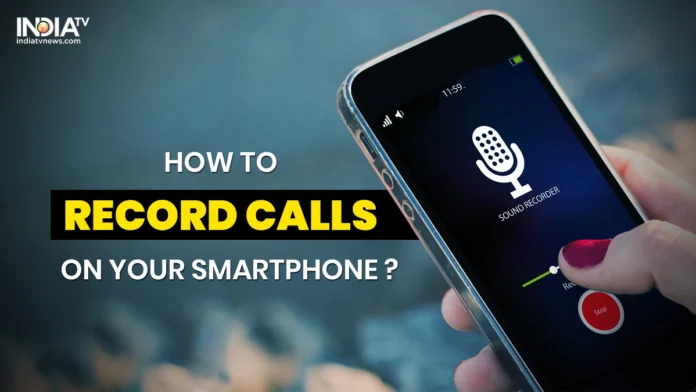
So, here’s the thing: if you’re rocking an older Pixel phone, like, say, a Pixel 3 or Pixel 4, you might’ve felt a twinge of envy watching newer Pixel users effortlessly record calls. But guess what? The wait is over! Google has quietly rolled out native call recording support to these older devices through an update to the Google Phone app. It’s not just some minor tweak; it’s a full-blown feature addition that brings older Pixels up to par with their younger siblings.
Why This Matters | More Than Just a Recording
Let’s be honest, it’s easy to dismiss this as “just another feature.” But I think it’s far more significant than that. Why? Because call recording isn’t just about having a record of what was said. It’s about accountability, clarity, and, in some cases, even safety. Think about it: How many times have you had a crucial phone conversation maybe with a service provider, a doctor’s office, or even a client and wished you could rewind to confirm details? Now you can. And for us in India, where things can sometimes get a little… chaotic… having a reliable record can be a lifesaver.
What fascinates me is the timing. Why now? One reason could be the increasing competition in the smartphone market. Google knows it needs to keep its existing user base happy, and providing valuable features like native call recording demonstrates a commitment to long-term support. Besides, in today’s environment where privacy concerns are at the forefront, providing in-built features is often viewed more favorably than relying on third-party apps.
How to Get It | A Step-by-Step Guide
Alright, so you’re itching to start recording your calls. Here’s how to make it happen. I initially thought this would be straightforward, but then I realized that not everyone is tech-savvy, so let’s go step by step:
- Update the Google Phone App: Head over to the Google Play Store and make sure you have the latest version of the Google Phone app. This is crucial. Without the updated app, you won’t see the recording option.
- Start a Call: Make or receive a phone call as you normally would.
- Look for the Record Button: During the call, you should see a new “Record” button on the call screen. If you don’t see it immediately, tap the three-dot menu to reveal additional options.
- Tap Record: Simply tap the “Record” button to start recording. You’ll likely hear a beep or a notification to indicate that the recording has begun. (Check local laws regarding consent – some jurisdictions require informing the other party.)
- Stop Recording: When you’re finished, tap the “Stop” button. The recording will be saved automatically.
- Access Your Recordings: You can find your recorded calls in the Google Phone app’s call history.
A common mistake I see people make is not enabling the permission for microphone access. So double-check that the google phone app has access to microphone in the permissions settings.
The Emotional Angle | Peace of Mind
That feeling when you need to recall something vital from a call, but you’re drawing a blank. We’ve all been there. And it’s incredibly frustrating. This new feature for older Pixels isn’t just about functionality; it’s about providing peace of mind. Knowing that you can reliably record important conversations takes a load off.
Imagine you are discussing complex insurance details, a doctor’s instructions, or complicated directions. You can now just listen to the recordings later, removing the stress of trying to memorize everything in the moment. Let’s rephrase that for clarity: This is about empowering you with tools to confidently manage your communications.
The one thing you absolutely must double-check is local regulations. Call recording laws vary significantly. Some places require both parties to consent to the recording (two-party consent), while others only require one party to be aware (one-party consent). Ignorance isn’t bliss here; it could lead to legal trouble, so do your homework before you start recording every single call. According to various sources, India generally recognizes one-party consent, but always confirm current legal advice. Usatrendingtodays has more updates on tech laws.
FAQ Section
Frequently Asked Questions
Will the other person know I’m recording the call?
The Google Phone app usually plays a notification sound to both parties when recording starts. However, you should always check local laws regarding consent.
Where are the call recordings saved?
Recordings are saved within the Google Phone app, linked to the specific call in your call history.
What if I don’t see the record button?
Ensure you have the latest version of the Google Phone app. Also, the feature might not be available in all regions or for all call types.
Can I record calls on apps like WhatsApp or Signal?
This feature is specific to the Google Phone app for regular phone calls. Other apps may have their own recording options or policies.
What file format are the recordings saved in?
Generally, call recordings are saved in MP3 format, but this might vary.
In conclusion, the rollout of native call recording to older Pixel devices is more than just an update; it’s a testament to Google’s commitment to its user base and a powerful tool for enhancing communication and accountability in our daily lives. The ease of native call recording support will greatly improve communication and safety. It’s a small change that makes a big difference.
And always check trusted news sites such asWikipediato verify what’s permissible.


